Drag to Select and Move in My Assets
2026-10-12 · Improvements
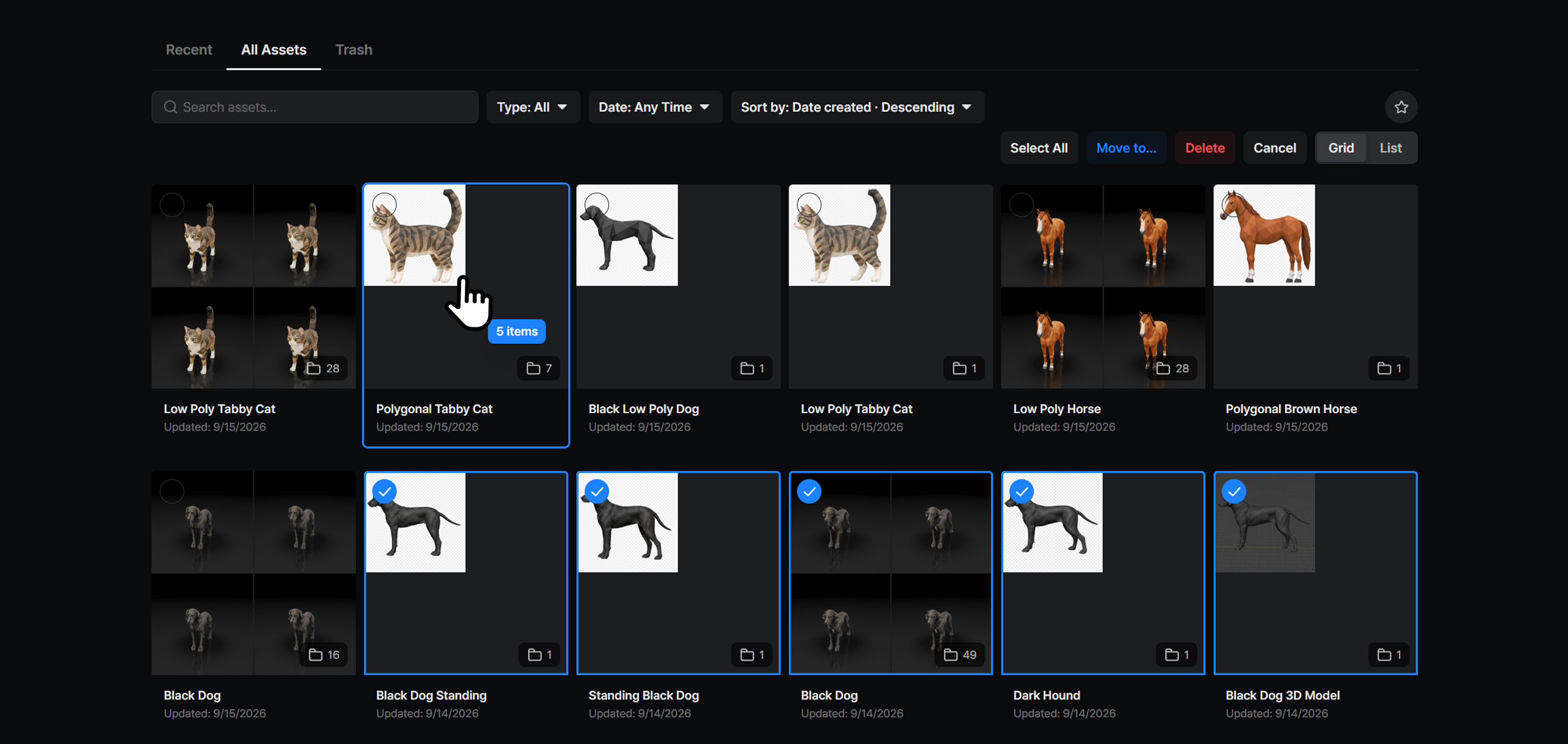
Organizing My Assets just got faster. In Select Mode you can now drag to select items, then drag them into a folder or onto the new Trash tab — and drag them back out of Trash to restore them.
What's New
- Drag to select — in Select Mode, drag across the list to select every item the box touches. Hold Shift, Ctrl, or Cmd to add to the selection, or Alt to take items out.
- Drag to move — drag the selection onto a folder or a breadcrumb to move it there.
- Drag to trash or restore — drop the selection on the Trash tab to move it to Trash. In Trash, drop it on Recent or All Assets to restore it.
- Trash tab — Trash now sits beside Recent and All Assets. Its Select Mode adds a Remove button to permanently remove several items at once.
How to Use
- Open My Assets and go to All Assets.
- Click Select Mode.
- Drag across the items you want.
- Drag the selection onto a folder to move it, or onto the Trash tab to delete it.
Good to Know
- Dragging works with a mouse on desktop.
- In Select Mode, click an empty area to clear the selection.
- In Select Mode, double-click a folder to open it.