Click. Stick. Done.
2026-04-22 · New Feature
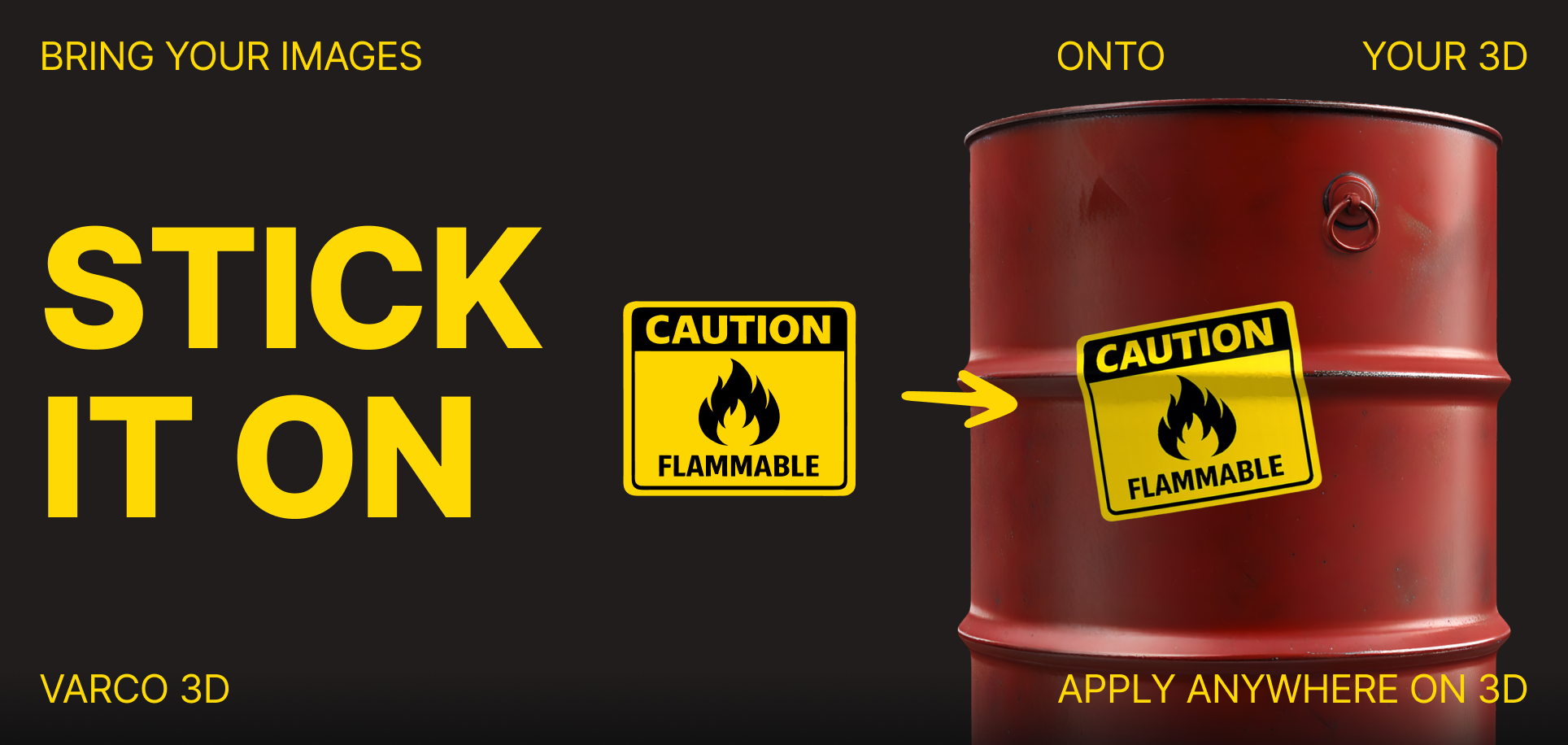
Not every edit needs a brush. Some just need a sticker.
What's New
- Stickers are now available in the Texture Paint & Sticker mode of 3D Studio.
- Upload your own PNG/JPG/WebP or pick from the public library, then click on the model to place it — the sticker wraps along the surface.
- Each placed sticker is fully editable: size, rotation, opacity, horizontal/vertical flip, duplicate, bring-to-front, delete.
- Undo / Redo now covers brush strokes and stickers together — one unified history per session.
Why It Matters
- Logos, patches, labels, face markings, speed decals — no external editor needed.
- Try ideas, rearrange them, discard the ones that didn't land.
- Nothing touches the asset's texture until you hit Apply Changes. Experiment freely.
How to Use
- Open 3D Studio and enter Texture Paint & Sticker
- Upload a sticker or pick one from the library
- Click on the model to place it
- Select the placed sticker to adjust its transform
- Hit Apply Changes when you're happy
Good to Know
- Ctrl/Cmd + Z to undo, Ctrl/Cmd + Shift + Z (or Ctrl/Cmd + X) to redo — works across stickers and brush alike.
- Uploaded images: PNG / JPG / WebP, up to 10 MB.
- Stickers wrap along the mesh surface, so they follow the curvature instead of sitting flat.
- Desktop only.
Stickers, not strokes.