Connect VARCO 3D MCP to the Claude App
2026-07-14 · tutorial
Connect VARCO 3D to the Claude app and build Custom Workflows simply by describing what you want.
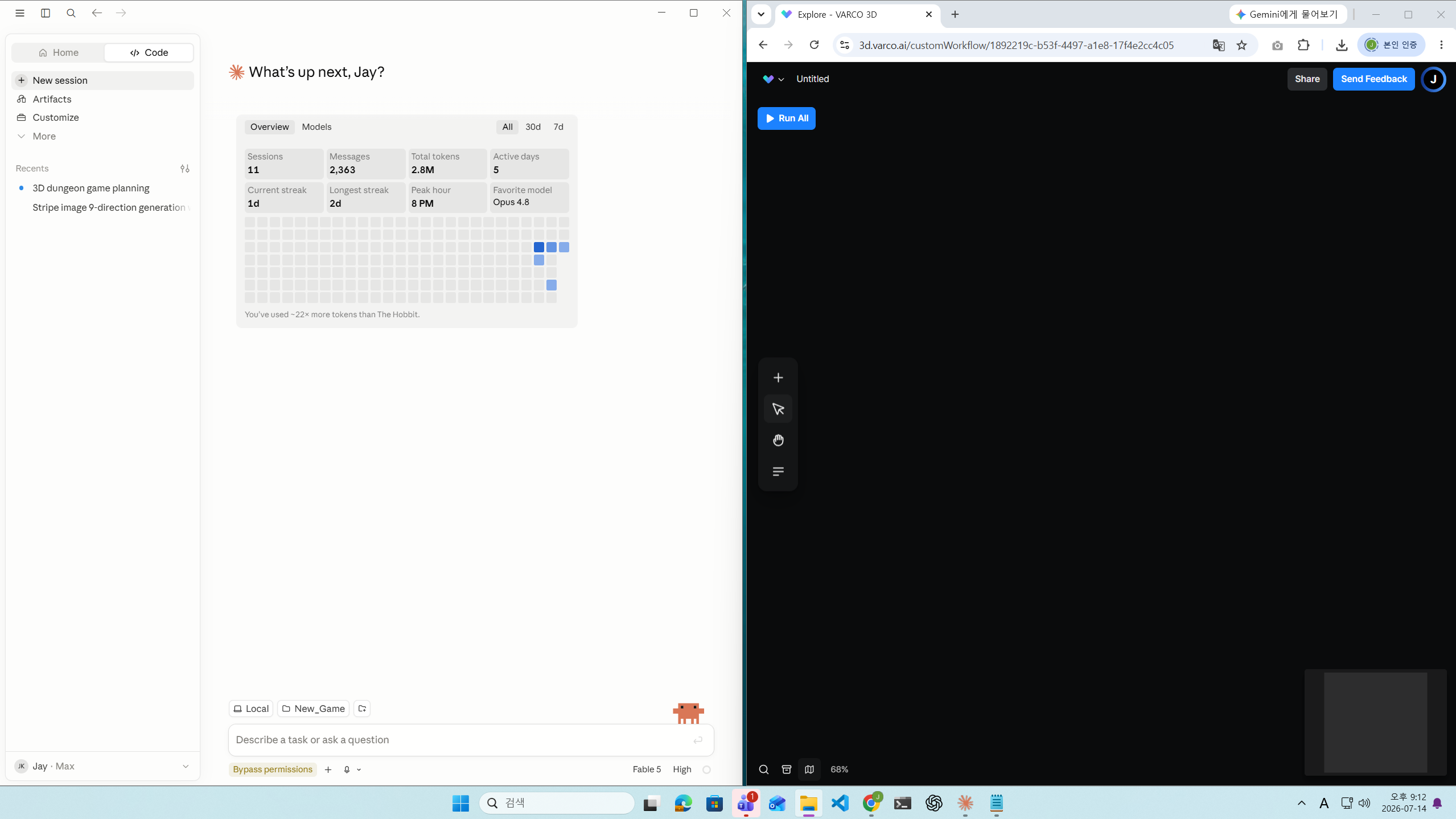
1. Open the Claude App
Open the Claude desktop app.
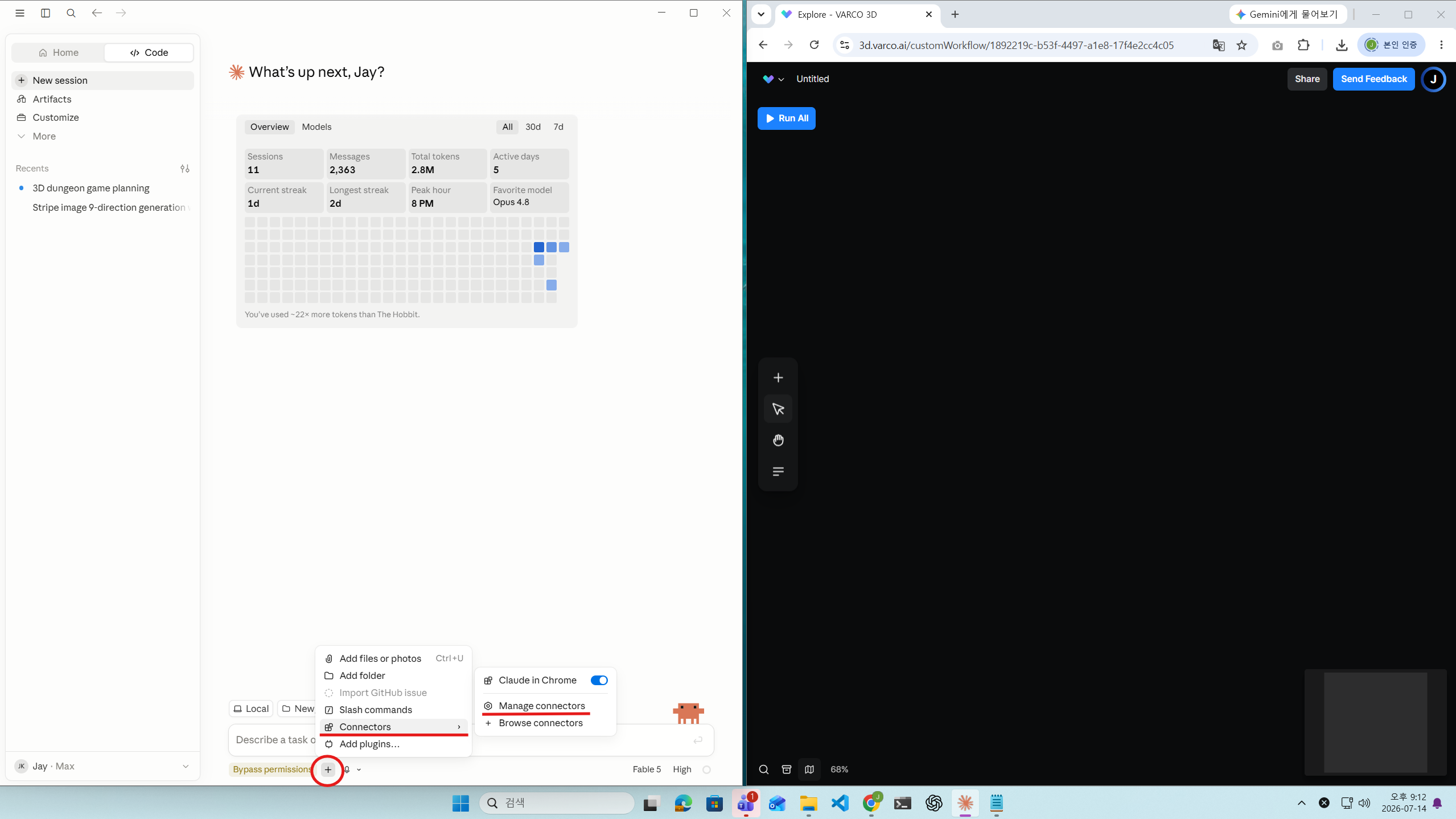
2. Open the Connectors Settings
Select the + button below the prompt box, then go to Connectors → Manage Connectors.
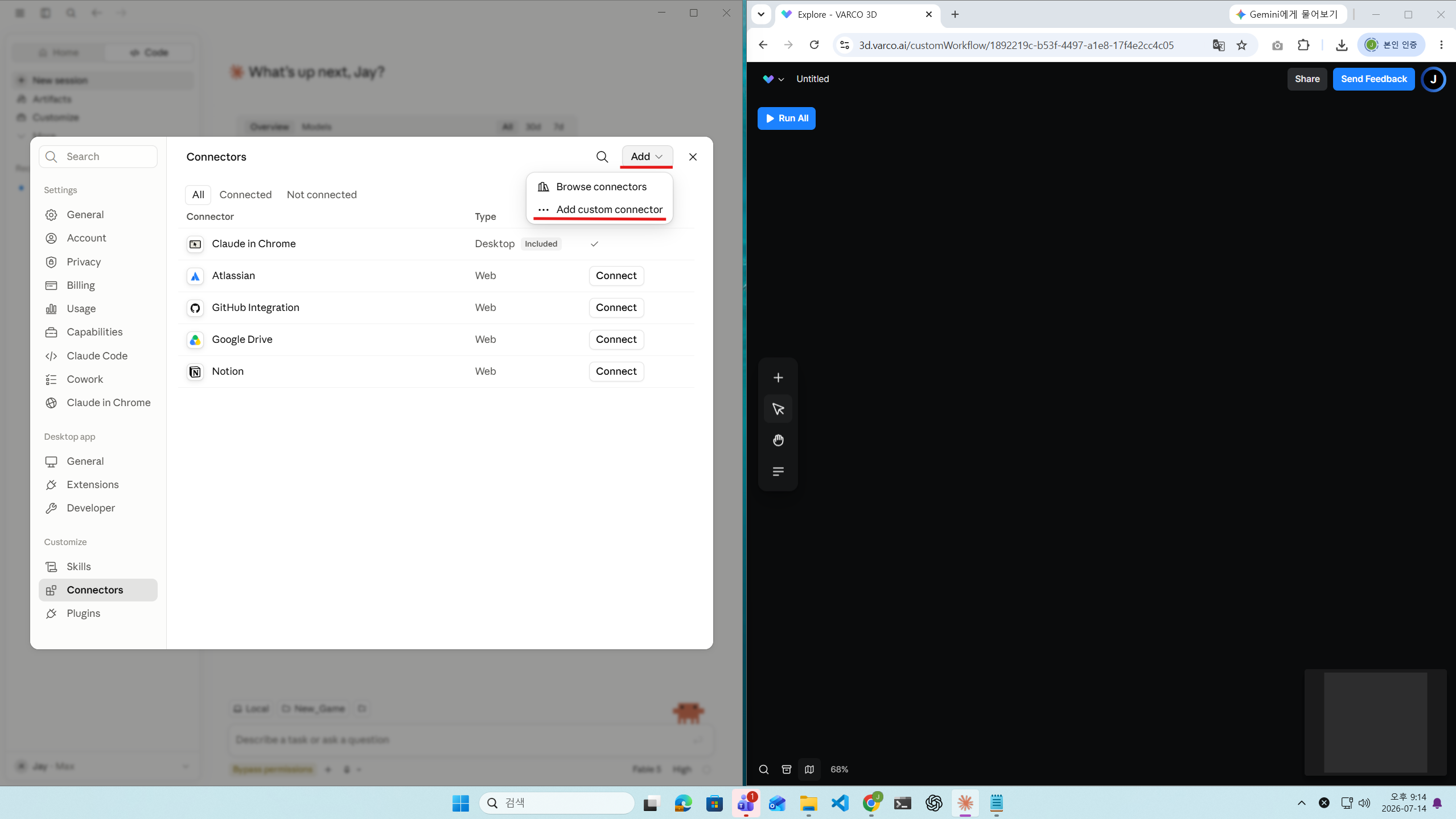
3. Add a Custom Connector
Select Add → Add custom connector.
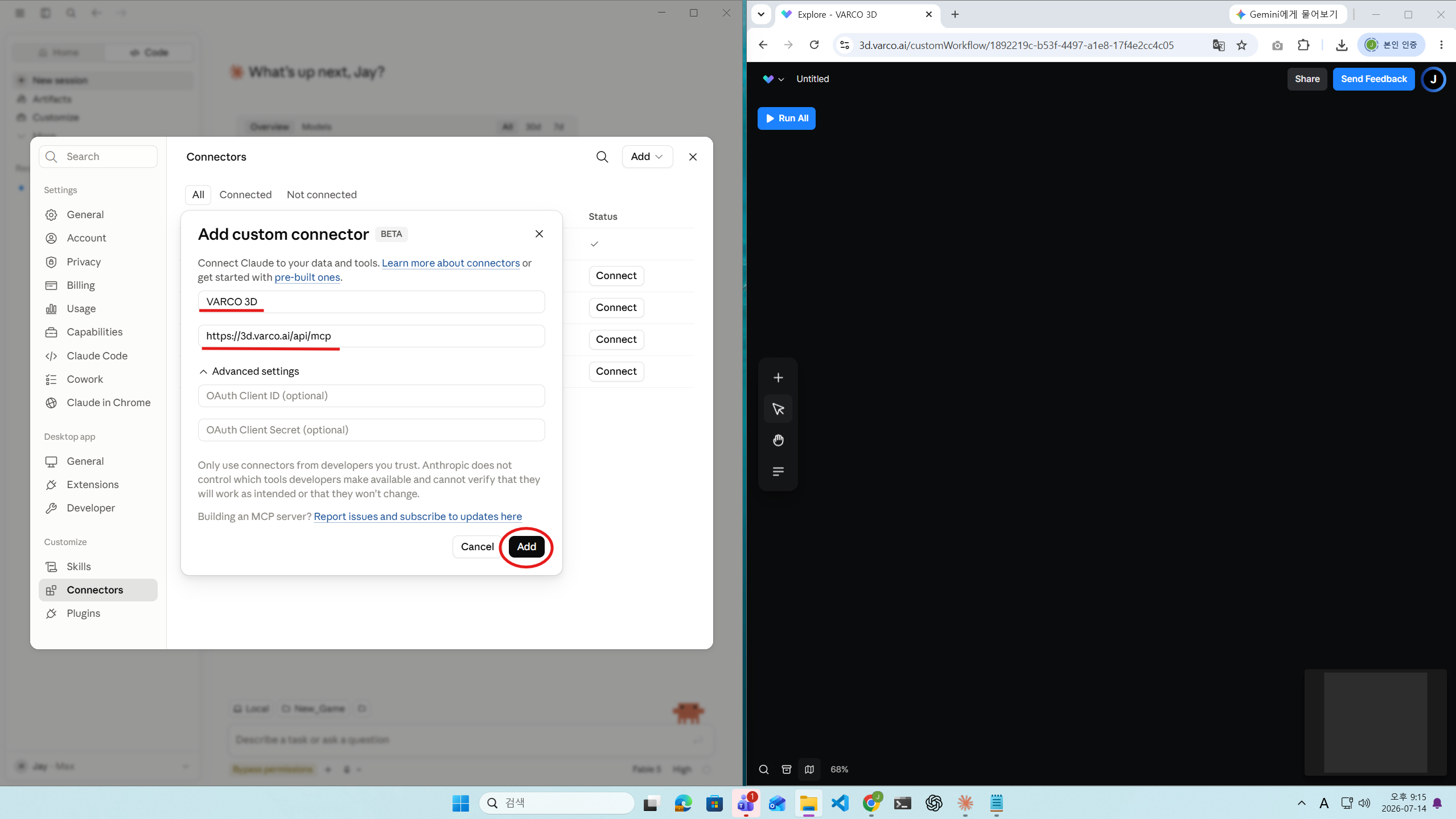
4. Enter the VARCO 3D Details
Enter the following information:
- Name:
VARCO 3D - URL:
https://3d.varco.ai/api/mcp
Select Add when you are finished.
5. Authorize the Connection
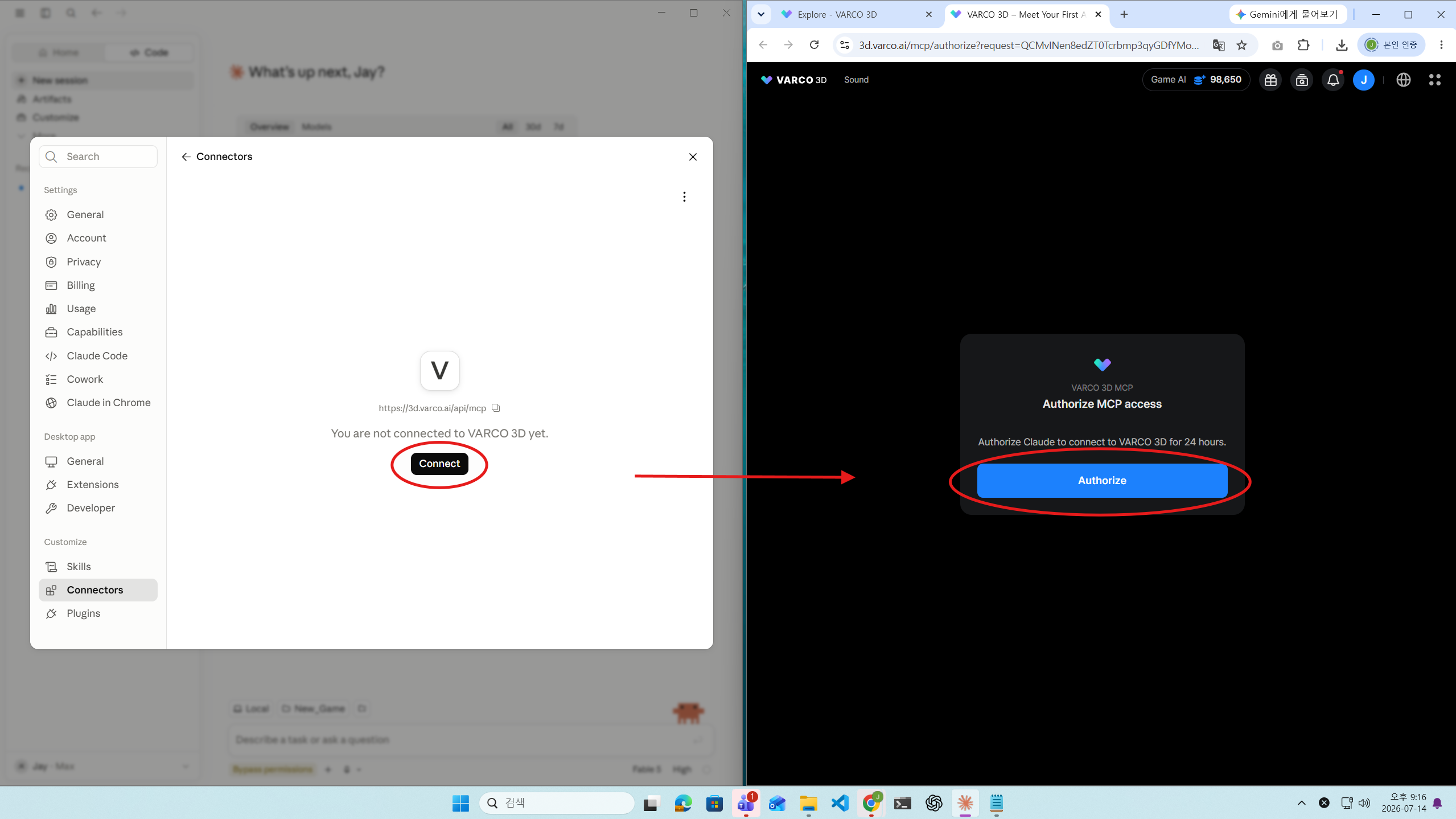
Select Connect for the VARCO 3D connector.
When the VARCO 3D authorization page opens in your browser, select Authorize.
6. Return to the Claude App
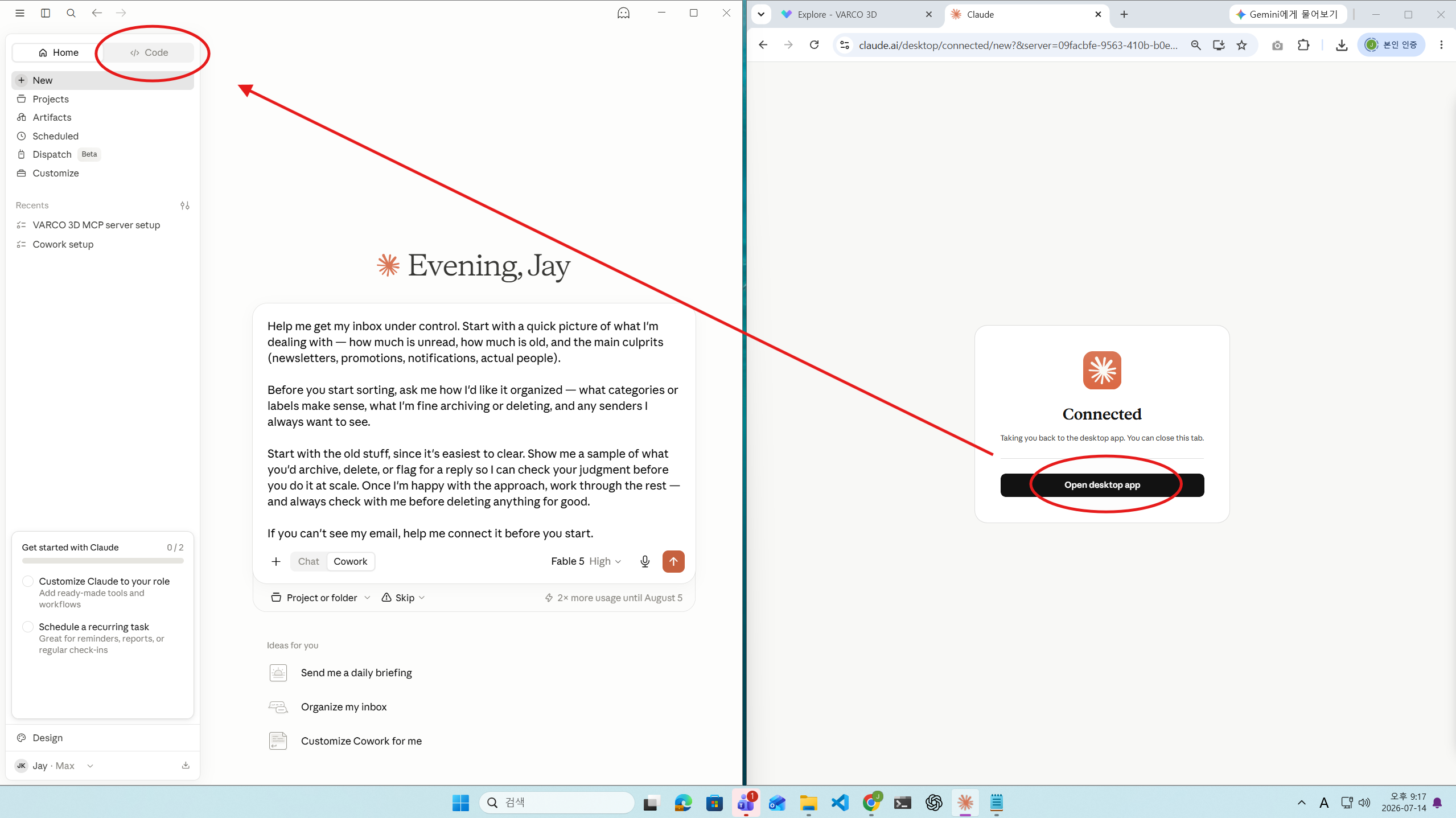
On the Claude authentication screen, select Open desktop app.
7. Describe the Workflow You Want
Return to the Claude app and describe the workflow you want to create.
For example:
Create a workflow that generates an image from a text prompt and then creates a 3D model from that image.
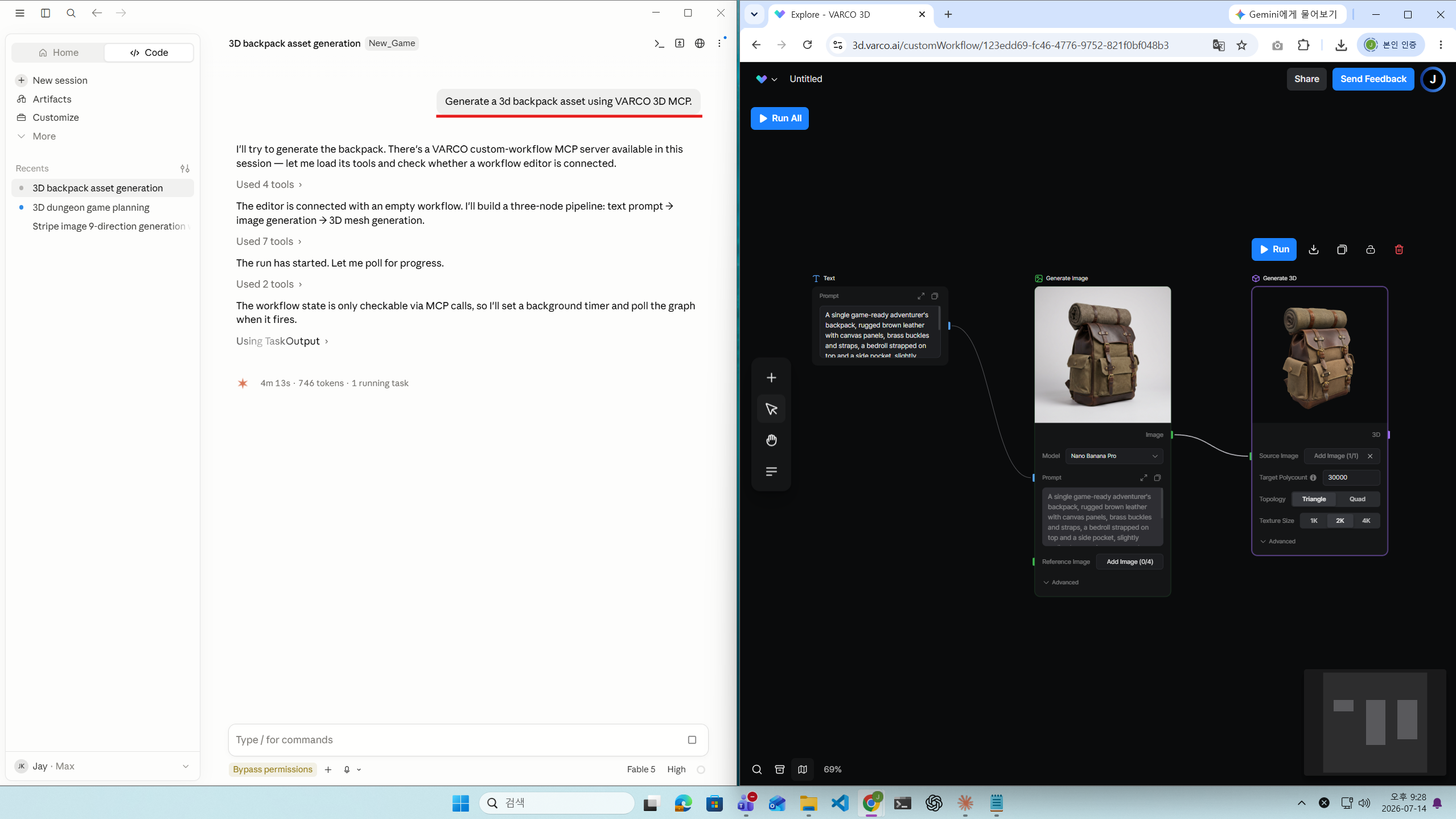
Your VARCO 3D connection is ready!