How to Apply VARCO 3D FBX Animations in Unity
2026-06-05 · tutorial
This guide explains how to apply an animation from a VARCO 3D FBX file inside Unity.
When you download an animated character as an FBX file, the animation data is included in the imported asset. However, Unity does not automatically play that animation on a scene object until you connect the animation clip through an Animator Controller.
The process is simple:
- Import the animated FBX file into your Unity project
- Confirm that the animation clip is included in the imported asset
- Create an Animator Controller
- Add the FBX animation clip to the Animator Controller
- Assign the Animator Controller to the character instance
- Play the scene and confirm that the animation is applied
Import the FBX Asset
Step 1. Import the animated FBX file into Unity
In Unity, drag the downloaded FBX file into your project's Assets folder.
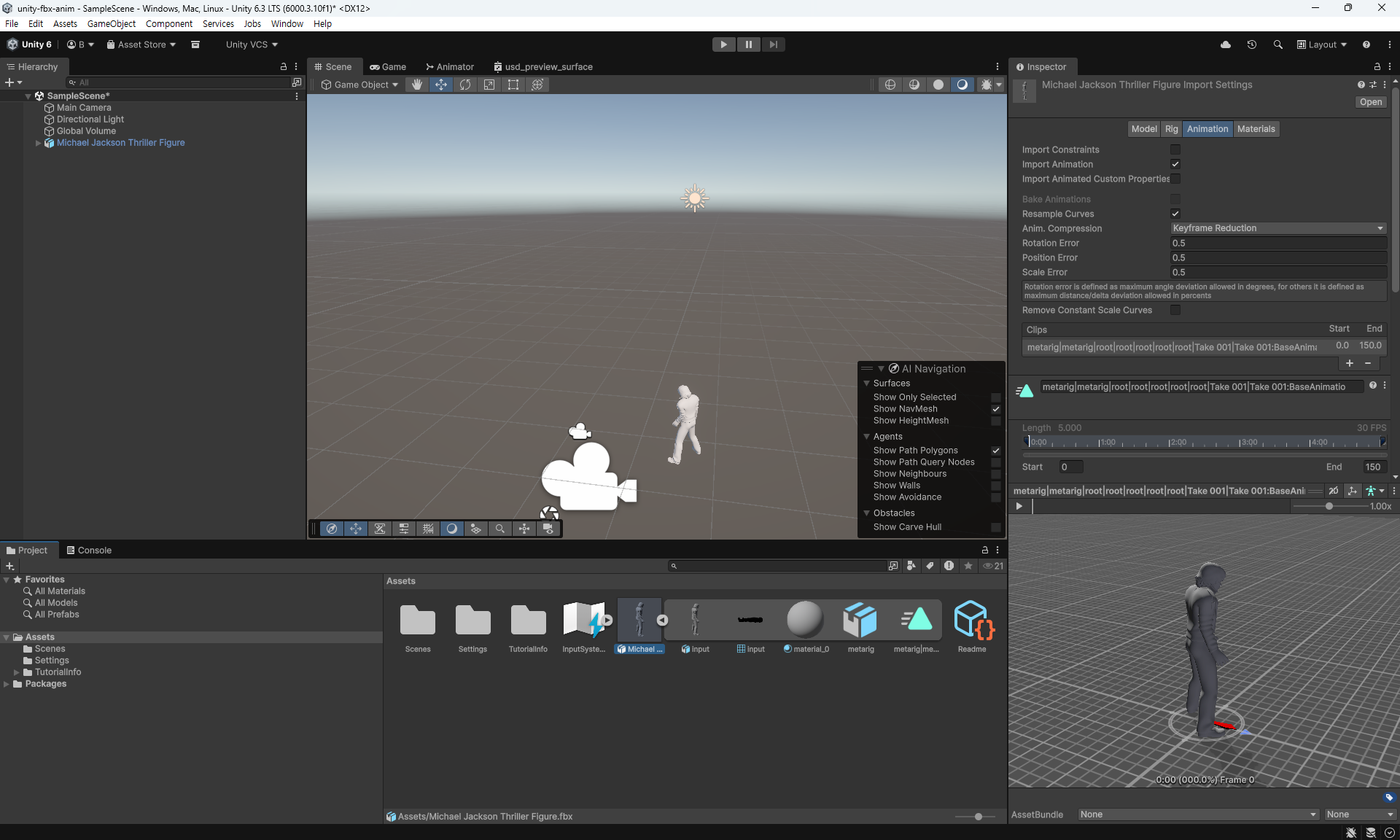
After the import is complete, select the FBX asset in the Project window. Unity will show the imported model data in the Inspector.
If the FBX was exported with animation data, the animation clip will be included under the imported asset.
Step 2. Confirm the animation clip is included
Select the imported FBX asset and check the asset contents in the Project window.
You should see an animation clip listed under the FBX asset. You can also preview the animation from the preview area in Unity to confirm that the imported data contains animation.
If the animation clip is visible, the FBX import was completed successfully. The next step is to connect that clip to the character instance in your scene.
Apply the Animation
Step 1. Create an Animator Controller
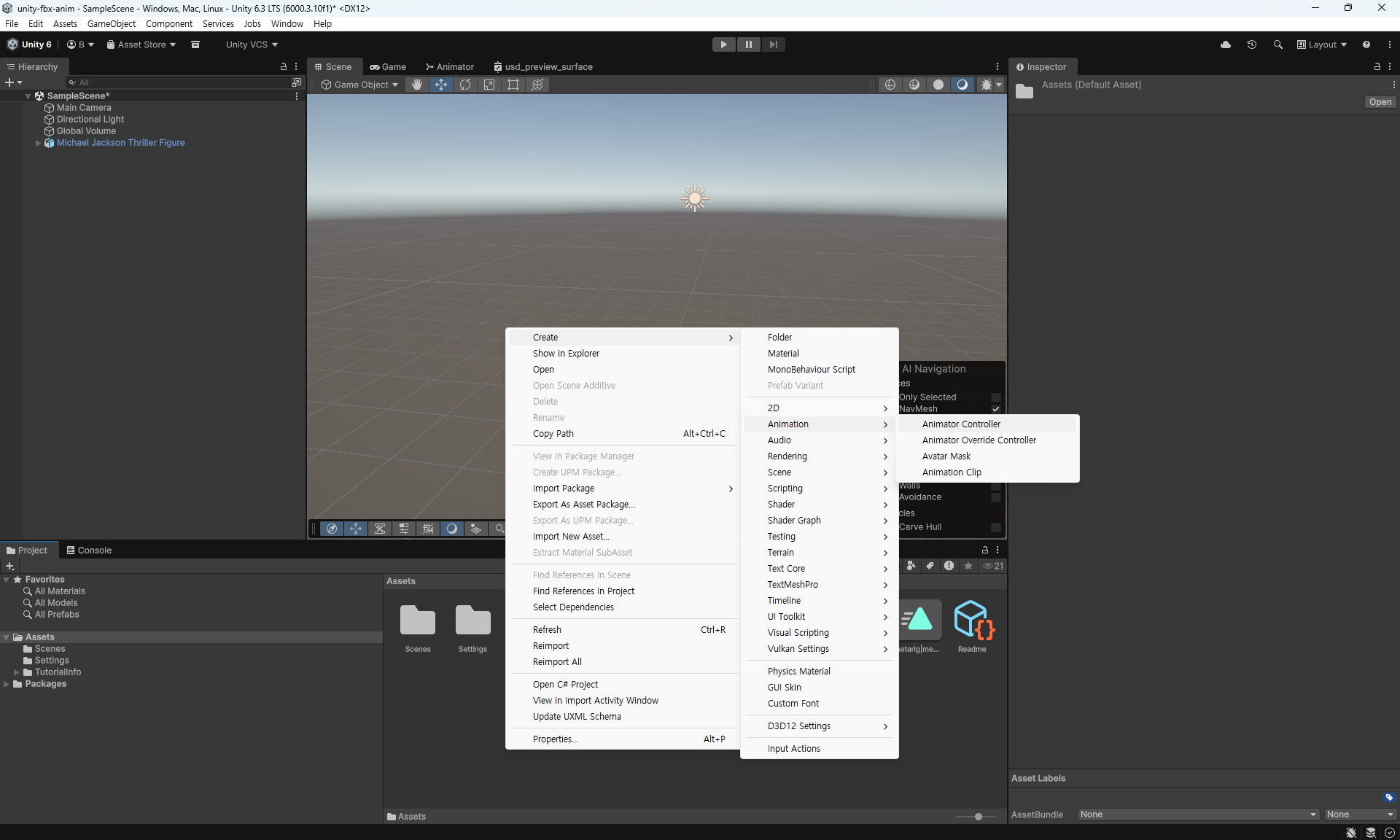
In the Project window, right-click inside the folder where you want to store the controller, then choose Create > Animation > Animator Controller.
Give the controller a clear name, such as Character_AnimatorController.
The Animator Controller is the asset Unity uses to decide which animation clip should play on a character.
Step 2. Add the animation clip to the Animator Controller
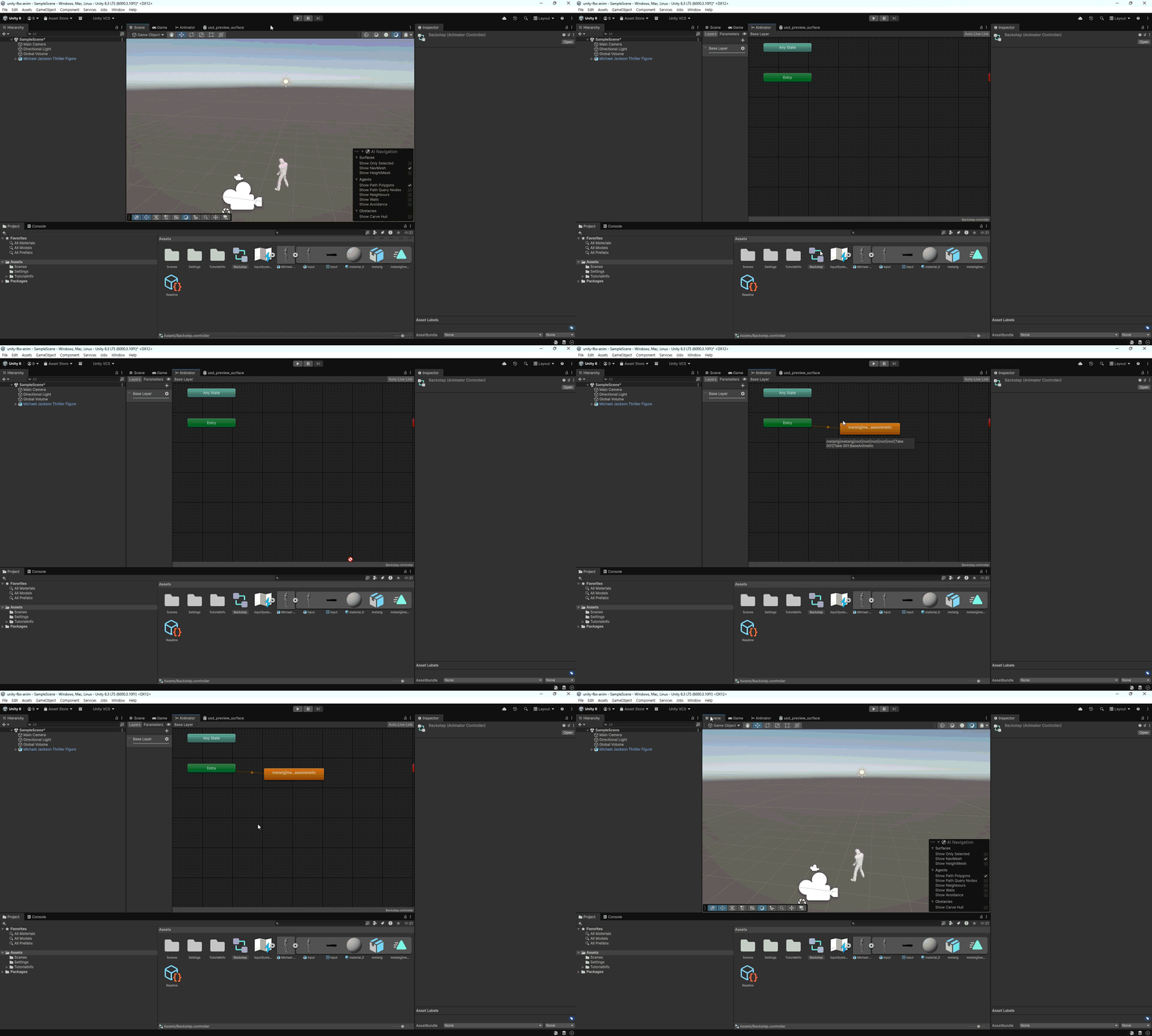
Double-click the Animator Controller you created. This opens the Animator window.
Drag the animation clip from the imported FBX asset into the Animator window. Unity will create a state for that animation clip.
If this is the first state in the controller, Unity will usually set it as the default state automatically. The default state is the animation that plays first when the scene starts.
Step 3. Add an Animator component to the character instance
Place the imported character model into your scene if it is not already there.
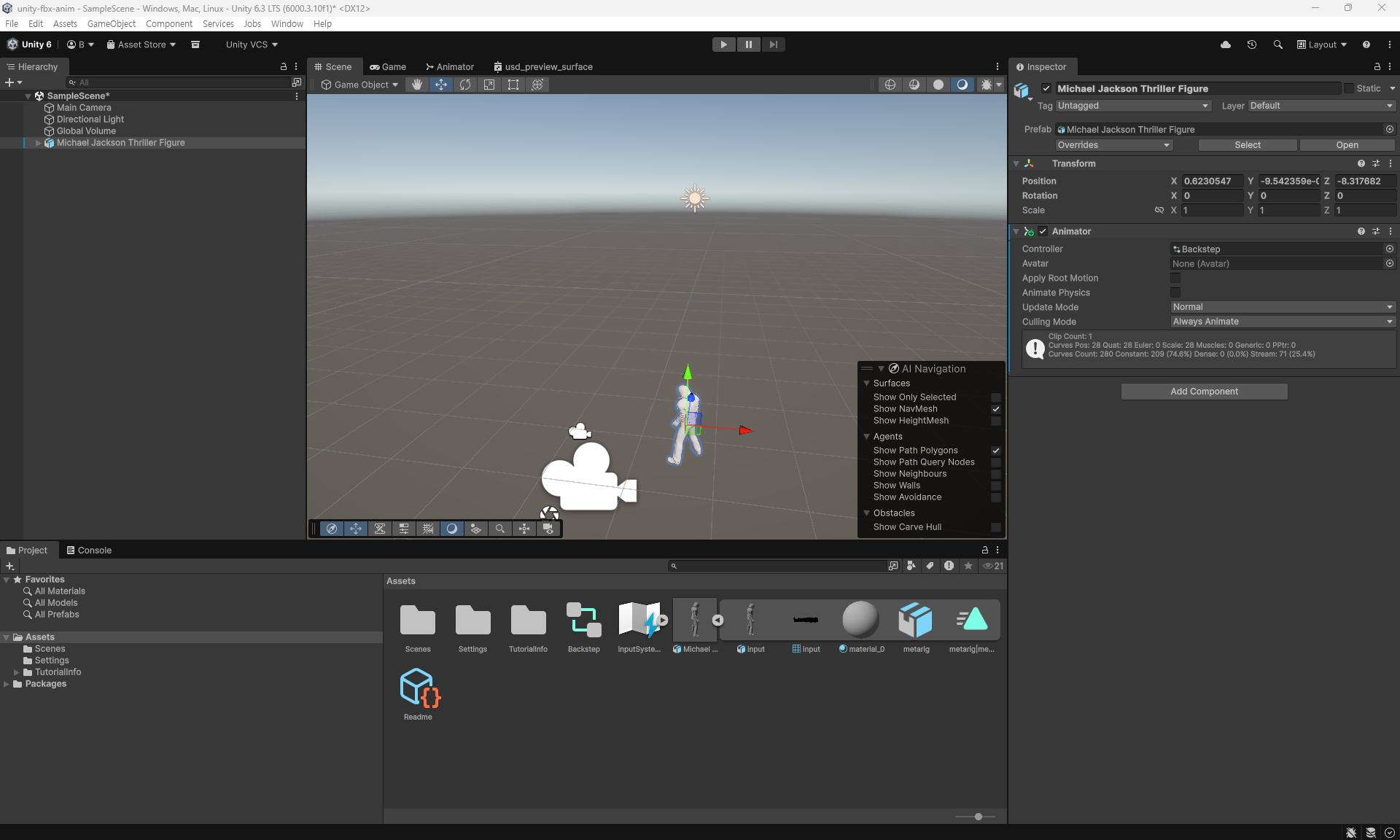
Select the character instance in the Hierarchy window. In the Inspector, make sure the object has an Animator component.
If the Animator component is missing, click Add Component, search for Animator, and add it to the character instance.
Step 4. Assign the Animator Controller
With the character instance still selected, find the Controller field on the Animator component.
Drag the Animator Controller you created into the Controller field.
This connects the animation setup to the character instance in the scene. Without this step, the animation clip may exist inside the imported FBX asset, but the scene object will not know which animation to play.
Confirm the Result
Step 1. Play the scene
Click the Play button in Unity.
If the Animator Controller is assigned correctly, the character instance should play the animation clip from the imported FBX asset.
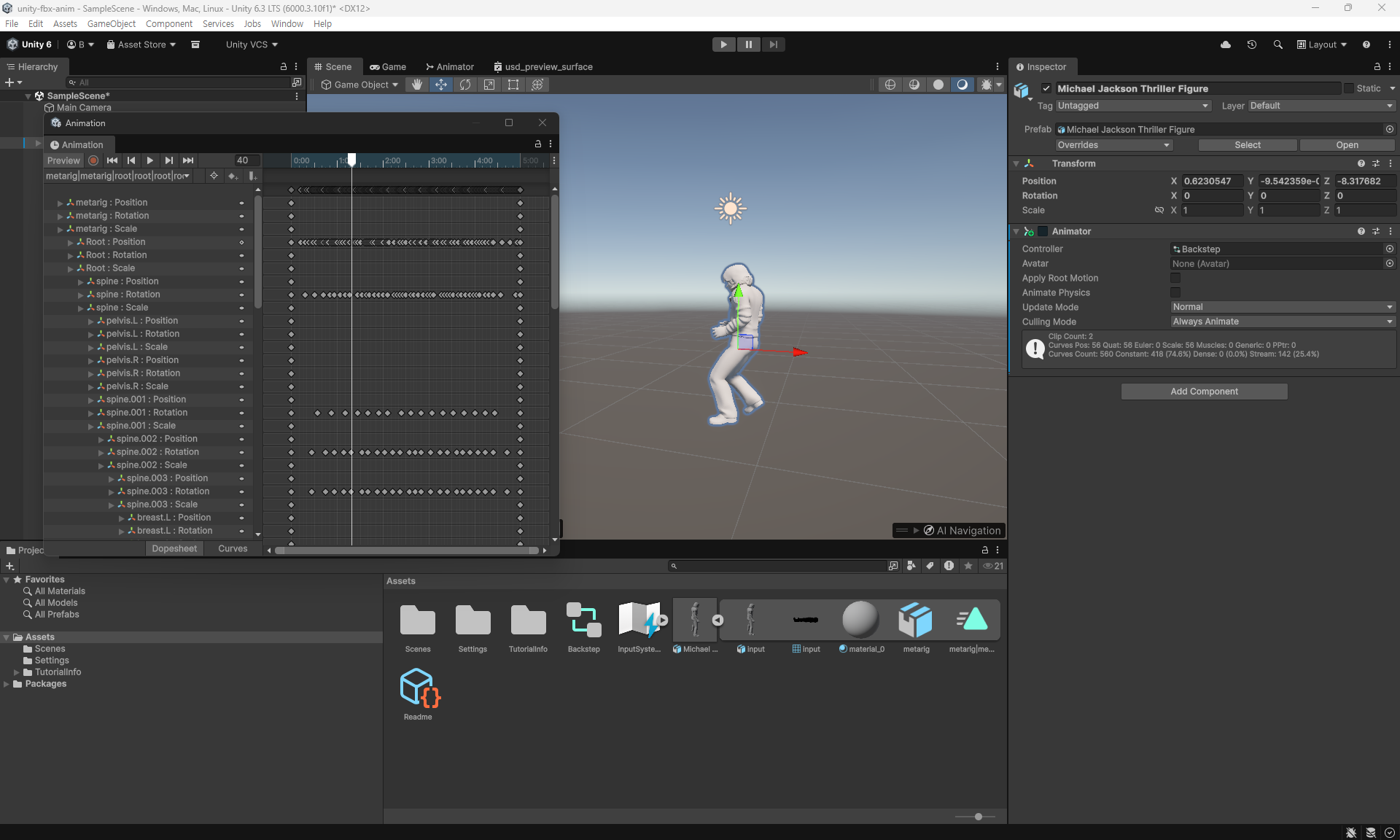
Step 2. Preview the animation from the Animation window
You can also inspect the animation by selecting the character instance and opening Window > Animation > Animation.
This window lets you check the animation timeline and confirm that the clip is available on the selected character.
Troubleshooting
The FBX asset includes an animation clip, but the character does not move
Make sure the character instance has an Animator component and that the Controller field is assigned to the Animator Controller you created.
The animation clip being visible in the imported FBX asset only means that Unity imported the animation data. The clip still needs to be connected through an Animator Controller before it can play on a scene object.
The animation clip is not visible under the imported FBX asset
Select the FBX asset and check Unity's import settings. If the animation clip is not listed, the FBX file may not contain animation data, or the import settings may need to be adjusted.
If you are using VARCO 3D Bridge for Unity, you can export assets directly from VARCO 3D Studio into Unity and reduce the amount of manual setup needed after download.
You're all set to use animated VARCO 3D FBX assets in Unity. Enjoy creating with VARCO 3D.